
Overview
When the lot is not wide enough, and you want to cut it into a single row of parcels, you can use ‘Divide parcel using Front lot line’ from SPCAD cadaster management tools.

How to Divide a Parcel in SPCAD
CAD users often face situations during lot subdivision when they need to divide thin lots into single rows of parcels. SPCAD offers dedicated tools to manage these cases efficiently. To start the process, draw a front lot line along the edge of the lot polygon that serves as the cutting edge. You must draw this line before using the tool. The front lot line should be an open Polyline object, not a 2D or 3D Polyline. If your line is a 2D, 3D Polyline, or an arc, convert it into a Polyline using SPCAD’s “Convert to Polyline” function. When you need to use an arc to mark the entire lot width or a portion of it, simply convert it before proceeding.
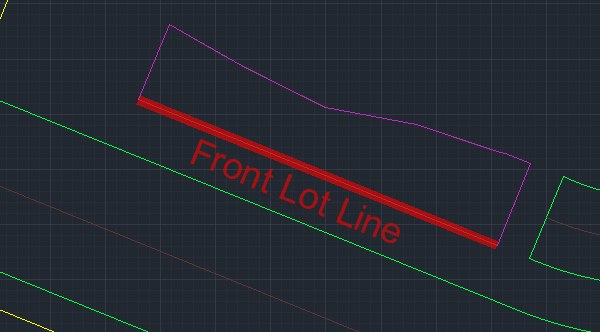
Any closed polyline can be considered a lot.
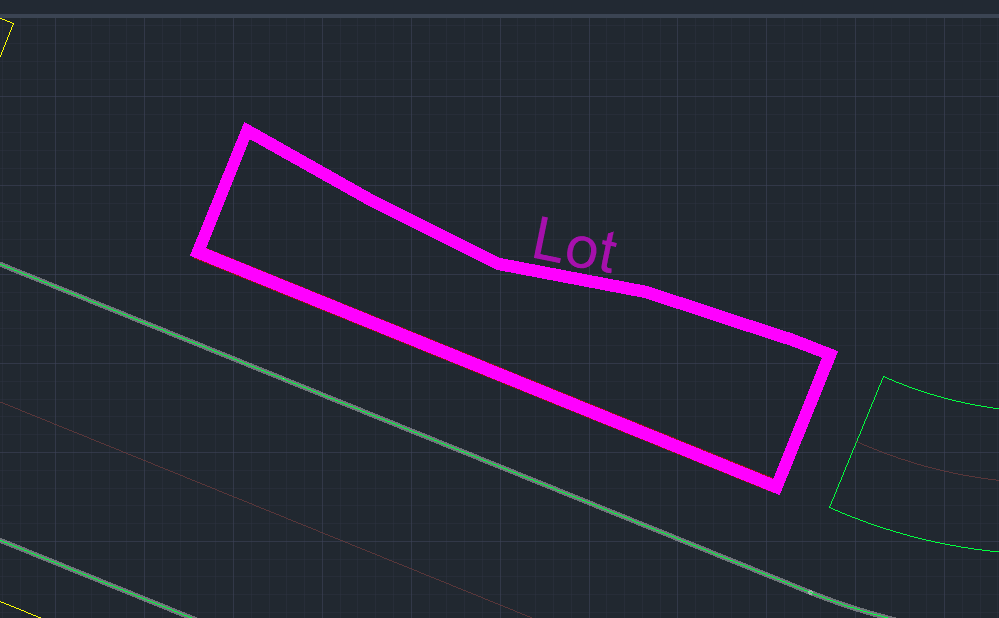
Please ensure that the “Front lot line” remains within the lot polygon. It can be positioned along the cutting edge or slightly inside the polygon. Ensure assigning a coordinate system to the drawing to avoid triggering a warning like the depicted one. This assignment is crucial for tasks such as area measurement, annotation, and exporting parcels to KML and shapefile.

Cutting options
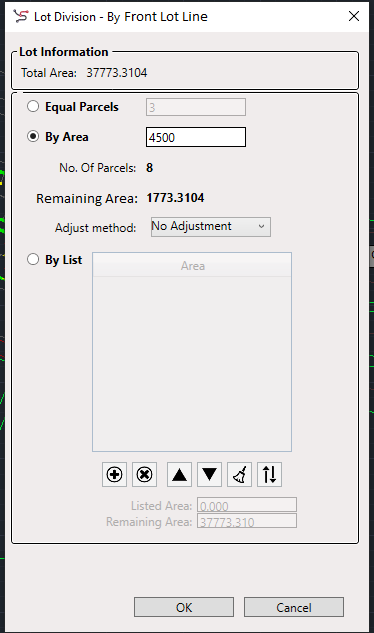
After obtaining a valid lot polygon, a corresponding Front lot line, and assigning the coordinate system to the drawing, proceed by clicking the tool icon or entering DDZ_SP. This action prompts the user to select the lot and the Front lot width line, after which a GUI will appear. Within this interface, you can independently manage parcel cutting for both the left and right sides.
Cutting Techniques
In this UI, you have the flexibility to divide a lot into parcels using three methods: Equal Parcels, By Area, and By List.

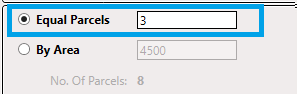
- Equal Parcels: Users can specify the desired number of parcels, and SPCAD will divide the lot into that number of parcels, ensuring equal area distribution among them.
- By Area: Users can specify an area, and SPCAD will divide the lot into parcels, ensuring each parcel meets the specified area. If there’s a remainder after cutting, adjustment methods such as Both Side +, Both Side -, Only First, Only Last, or No adjustment can be applied.

Both Side +
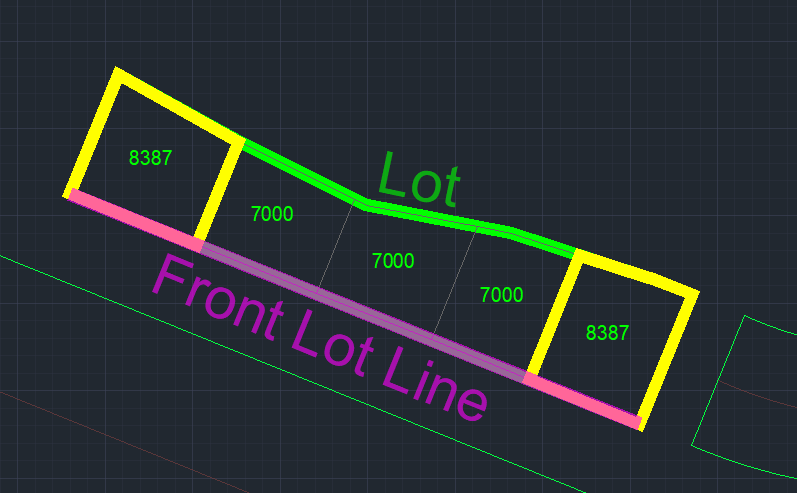
Consider a total area of 37,774 square units, and suppose you want each parcel to cover 7,000 square units. In this case, you can create five parcels, leaving a remaining area of 2,774 square units. When you select the Both Side + adjustment option, SPCAD adds 1,387 square units to both the first and last parcels. As a result, each of these parcels becomes 8,387 square units in size.
Both side –
Let’s assume the total area is 37,773 square units, and you want to divide it into parcels, each covering 7,000 square units. This setup creates five parcels, leaving a remaining area of 2,773 square units. When you choose the Both Side – option in SPCAD, the tool keeps four parcels at 7,000 square units each and removes the fifth one. SPCAD then distributes the remaining area among the existing parcels. As a result, you get four main parcels of 7,000 square units and two additional parcels of 4,887 square units each, positioned at the start and end of the row.

Only First
In this case, all the remaining area is added to the last parcel.

Only last
In this case, all the remaining area is added to the last parcel.

No adjustment
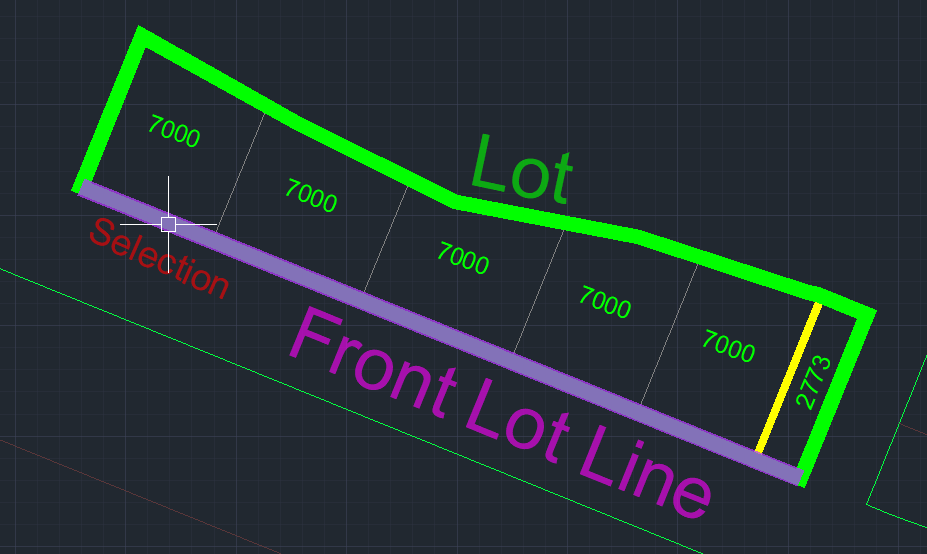
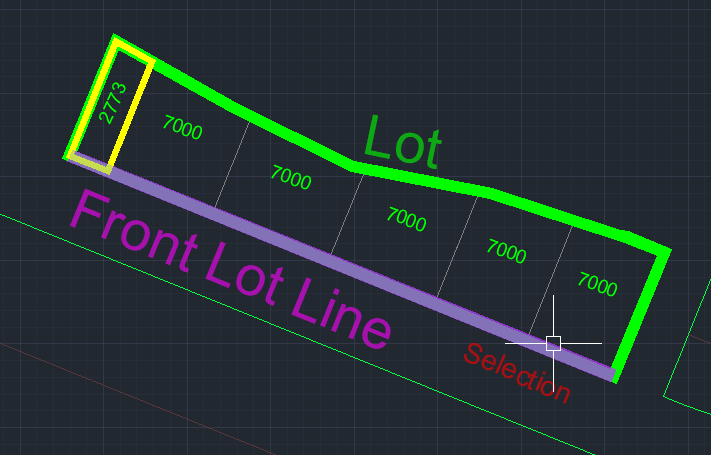
If you choose the ‘no adjustment’ option, SPCAD adds an extra parcel with the remaining area. The software places this parcel on the side opposite to the edge of the front lot line you selected first.
- By List: Users can specify parcel divisions by providing a list of desired areas. Entries can be added, deleted, rearranged, or inverted within the list interface.

Paste List
You can access all list operations by right-clicking on the list. Additionally, lists can be pasted from other applications (such as Excel or Notepad).

By following these steps and utilizing the various cutting techniques offered by SPCAD, CAD users can effectively handle thin lot subdivisions with precision and flexibility.