
How to Update? Tool SPCAD: Step-by-Step Guide
Note: Please ensure you have an active internet connection from using the UPD_SP command until reopening your CAD software after the update process.
- Save Your Work Before Updating: Before starting the update, save your drawing. The CAD software will close during the update, so saving prevents data loss.
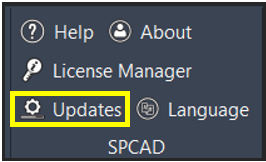
- Initiate the Update Process: Navigate to the SPCAD panel in the ribbon. Select “Updates” or type the command “UPD_SP” to begin.
- Check for Available Updates: A dialogue box will appear if SPCAD is outdated. Click “OK” to proceed with the update process.
- Review Release Notes and Enhancements: Another dialogue box will display release notes, enhancements, and new updates. Click on Update to continue.

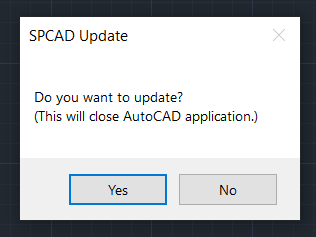
- Confirm CAD Session Closure: A new window will request the closure of your CAD session. Confirm by selecting Yes to allow the update to proceed.

- Monitor the Update Progress: A progress bar will indicate the ongoing download. This visual cue keeps you informed of the update’s status.

- Follow Installation Instructions: Adhere to the on-screen instructions provided by the installation wizard. These steps ensure the correct installation of the update.
- Reopen Your CAD Software: Upon completion of the installation, reopen your CAD software. This step finalizes the update process.
- Verify Update Completion: If the latest version is installed, a message will indicate that no further updates are available. This confirmation ensures your software is up to date.
Access the Latest Features
Updating SPCAD provides access to the latest tools and features. These enhancements improve functionality and efficiency.
Benefit from Performance Improvements
Updates often include performance optimizations. These improvements ensure that SPCAD runs smoothly on your system.
Stay Current with Industry Standards
Regular updates keep SPCAD in line with industry standards. This alignment ensures your work meets current requirements.
Receive Bug Fixes
Updates include fixes for known issues. These bug fixes improve the stability and reliability of SPCAD.
Enhance Security
Software updates often address security vulnerabilities. Updating SPCAD protects your work from potential threats.
Ensure Compatibility
Updates ensure that SPCAD remains compatible with your CAD software. This compatibility prevents conflicts and ensures smooth operation.
Improve User Experience
New updates may include user interface improvements. These enhancements make SPCAD easier to use and navigate.
Stay Informed About Changes
By updating, you stay informed about new features and improvements. This knowledge helps you make the most of SPCAD.
Protect Your Investment
Keeping SPCAD updated ensures that you continue to receive support and access to new features. This protection maximizes your software investment.
Enable Future Upgrades
Regular updates make your SPCAD eligible for future upgrades. Staying updated ensures access to upcoming enhancements.