
Overview of the Analysis Panel in SPCAD
The Analysis Panel in SPCAD is a powerful set of tools designed to enhance your CAD workflow by providing a variety of functionalities for manipulating, analyzing, and modifying your drawings. Whether you are working with polylines, polygons, or points, the Analysis Panel offers a comprehensive suite of tools to handle complex tasks with ease.
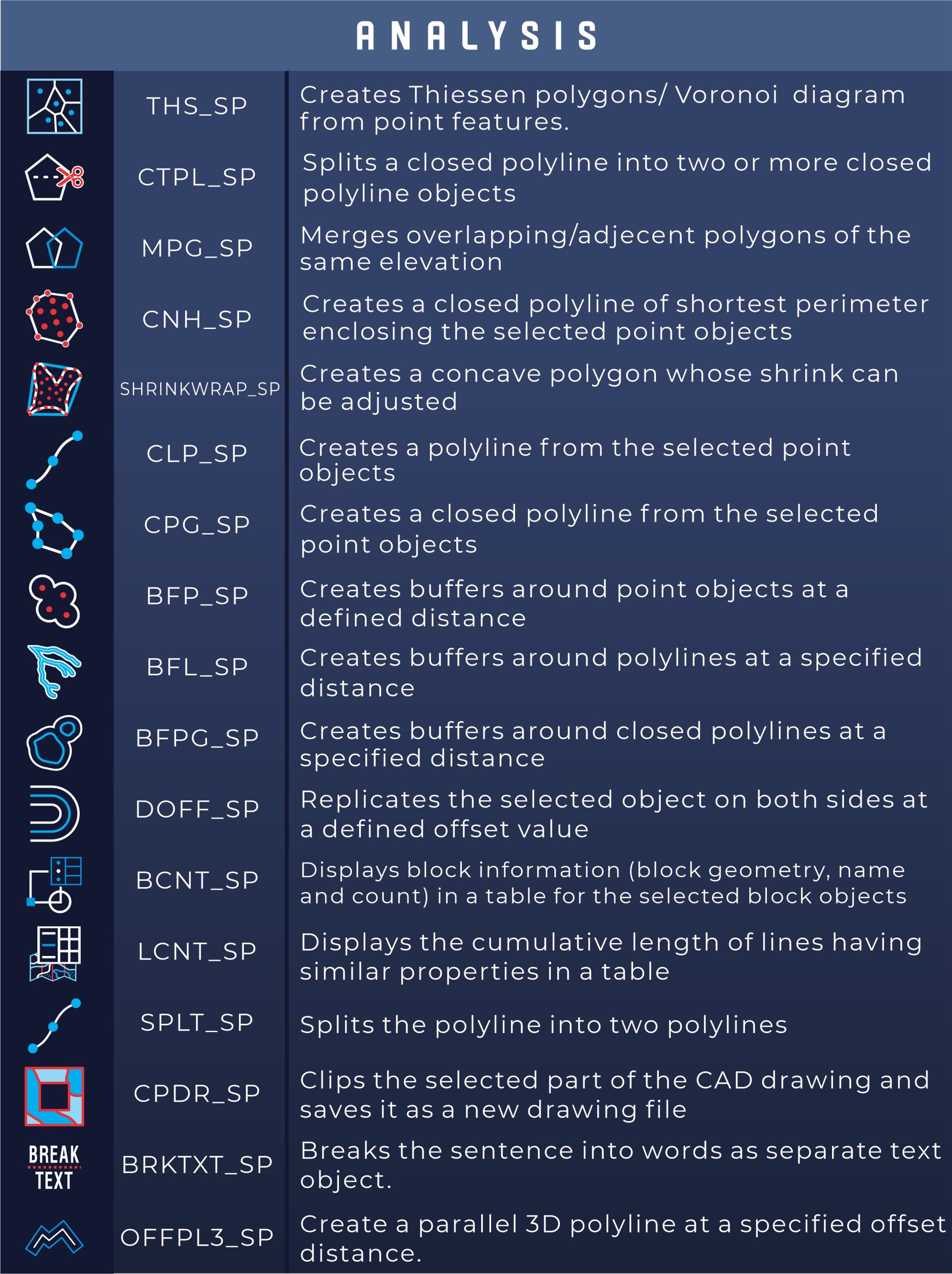
Cut Polygon
The ‘Cut Polygon’ tool allows you to split a polygon into separate parts. This is useful when you need to divide a large area into smaller sections for further analysis or design.
Merge Polygon
With the ‘Merge Polygon’ tool, you can combine two or more adjacent or overlapping polygons into a single entity. This is particularly useful for unifying regions that need to be treated as a single area in your analysis.
Offset of a 3D Polyline
Create a parallel 3D polyline at a specified offset distance.
Point Buffer
The ‘Point Buffer’ tool creates a buffer zone around selected points, which is essential for spatial analysis, such as determining areas within a certain distance of a point.
Line Buffer
Similar to the ‘Point Buffer’, the Line Buffer tool creates a buffer zone, but around selected lines. This is useful in scenarios like planning safety zones around pipelines or roads.
Polygon Buffer
The ‘Polygon Buffer’ tool generates a buffer around polygons. This is ideal for creating zones around areas like buildings or land plots. You can control the buffer distance and whether to merge buffers for overlapping polygons.
Double Offset
The ‘Double Offset’ tool creates two parallel offsets from a selected polyline, polygon, or circle. This tool is essential for creating boundaries at a specified distance from an existing line. Select the object, specify the offset distances, and execute the command to create the offsets.
Polyline From Points
The Polyline from Points tool enables you to generate a polyline by connecting selected points in your drawing. This is particularly useful for tasks like creating pathways or aligning points along a line. Select your points, and a polyline will be automatically created upon pressing Enter.
Polygon From Points
The ‘Polygon from Points’ tool allows you to create a closed polygon by selecting points. This is helpful in defining areas based on specific point locations.
Block Count
The ‘Block Count’ tool is designed to count the occurrences of specific blocks within a selected area. It generates a table that displays the block name, preview, and quantity. This is useful for inventorying components or objects within a drawing.
Line Count
The ‘Line Count’ tool calculates the total length of lines that share common properties, such as being on the same layer or having the same color. The results are displayed in a table showing the cumulative length for each group of lines.
Clip Drawing
The ‘Clip Drawing’ tool allows you to clip a specific area of a larger CAD drawing and save it as a separate file. This is ideal when you need to focus on a smaller section without affecting the original drawing.
Convex Hull
The ‘Convex Hull’ tool creates the smallest convex polygon that encloses a set of points. This is useful in various spatial analyses, such as defining the boundary of a set of locations.
Shrink-wrap
The ‘Shrink-wrap’ tool generates a boundary around a set of points, with the tightness of the boundary adjustable by the user. This is useful for creating boundaries that closely follow the shape of the points.
Break Text
The ‘Break Text’ tool separates a text string into individual words, each as a separate drawing object. This is useful when you need to manipulate or style individual words separately in your CAD design.
Split Polyline
The ‘Split Polyline’ tool divides a polyline into multiple segments. This is useful when you need to edit or analyze specific portions of a polyline independently.