Overview
In SPCAD, the Lot Division Tool makes dividing a lot into parcels quick, accurate, and customizable. This feature allows CAD users to subdivide lots, annotate parcel numbers, measure areas and edges, and export parcel data into GIS formats like KML and Shapefile. A valid coordinate system is required to enable annotation and export.

SPCAD’s lot division tool allows you to subdivide lots into parcels, annotate parcel numbers, and provide area and edge measurements. Additionally, you can export this information into various geospatial data formats like KML and Shapefile. Note that for annotation and export, a valid coordinate system in the drawing is required.
Initial Setup
Users of CAD often face challenges when they need to divide a rectangular lot into parcels. The requirement is to generate two arrays of parcels, with both length sides of the lot serving as the front lot line. SPCAD offers a robust tool that guides users to mark the side lot line during runtime. Any closed polyline can be regarded as a lot. Any closed polyline can be considered a lot.

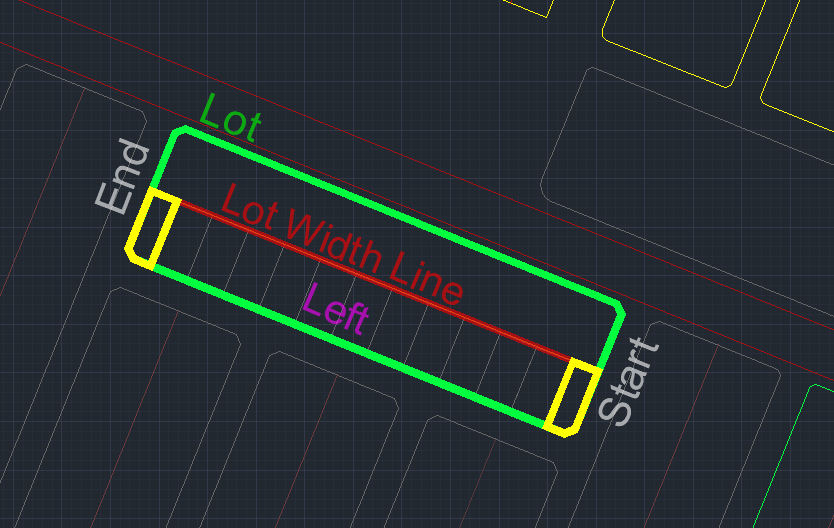
After selecting the Lot, you will be given an option to draw an edge along the side lot line. SPCAD will draw a perpendicular at its midpoint. On both sides of the perpendicular, the required parcel will be created.

Make sure to assign a coordinate system to the drawing; otherwise, a warning, akin to the one depicted below, will be triggered.

Cutting parcels
Upon obtaining a valid lot polygon and assigning the coordinate system to the drawing, you’re prepared to proceed. Clicking the tool icon or entering DDX_SP will prompt the user to select the lot and draw the side lot line (a cutting edge), after which a GUI will appear.
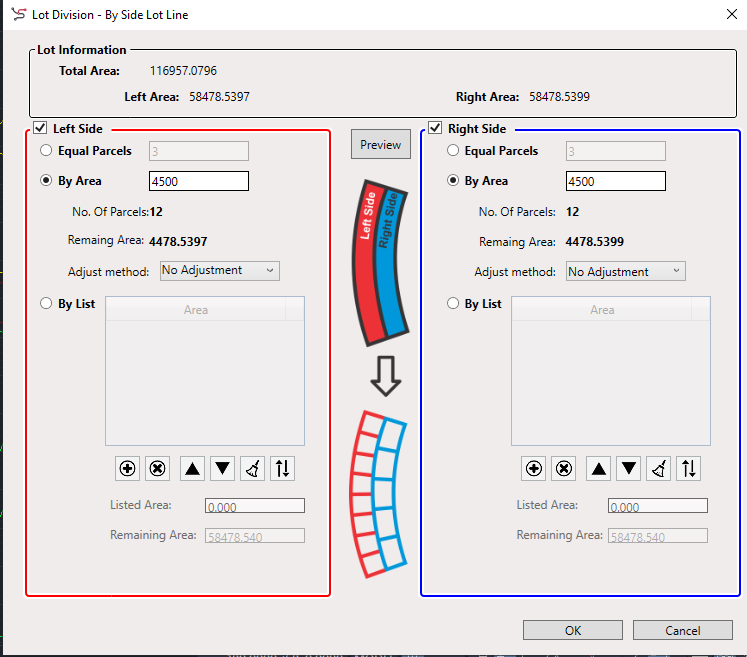
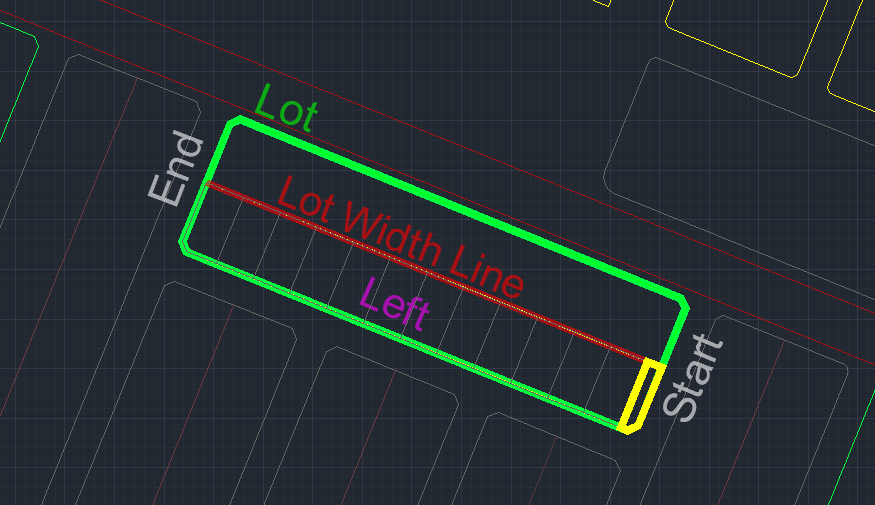
When the side lot line is drawn, the tool generates a lot width line perpendicular to the side lot line, dividing the lot into left and right polygons. Not only can you cut parcels independently on each side, but you can also choose different division methods for each side. In essence, the two sides operate independently of each other. To identify the left and right sides, simply click the preview icon on the GUI. The left portion will be highlighted in red, while the right portion will be highlighted in blue in the drawing.

By deselecting the checkboxes next to the Left Side and Right Side options, the lot will be divided into two sublots.
Cutting Techniques
In SPCAD, you have the flexibility to divide a lot into parcels using three methods: Equal Parcels, By Area, and By List.
- Equal Parcel
- By Area
- By List

Equal Parcels
In Equal Parcels, you can specify the number of parcels you need, and SPCAD will cut the lot into that number of parcels, ensuring that all parcels have the same area.

By Area
With this method, you can specify an area, and SPCAD will cut the lot into parcels, ensuring that all parcels have the specified area. It is possible that after cutting, a parcel may have an area smaller than the specified area. In such cases, SPCAD provides four adjustment methods to deal with the remaining area, including, Both Side +, Both Side -, Only First, and Only Last.
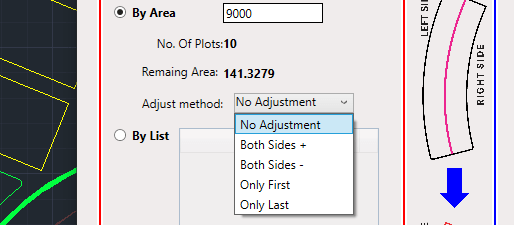
1. Both sides +
Here, SPCAD is cutting only the left side area of the lot width line using the BY AREA technique. Consider the total area is 557,000 sq units, and you need each parcel to be 4,500 sq units. Therefore, 12 parcels can be obtained, and 1,700 sq units of area are still remaining. If I select the BOTH SIDE + from the adjustment option, the first and the last parcel will become 5350 sq units, as 850 sq units will be added to each of them from the remaining 1,700 sq units.

2. Both Sides –
Here, SPCAD is cutting only the left side area of the lot width line using the BY AREA technique. Consider the total area is 557,000 sq units, and you need each parcel to be 4,500 sq units. Therefore, 12 parcels can be obtained, and 1,700 sq units of area are still remaining. If I select the BOTH SIDE – from the adjustment option, a parcel of 850 sq units will be added at the start, and one of the same size will be added at the end.
3. Only First
In this case, the whole remaining area is added to the first parcel.
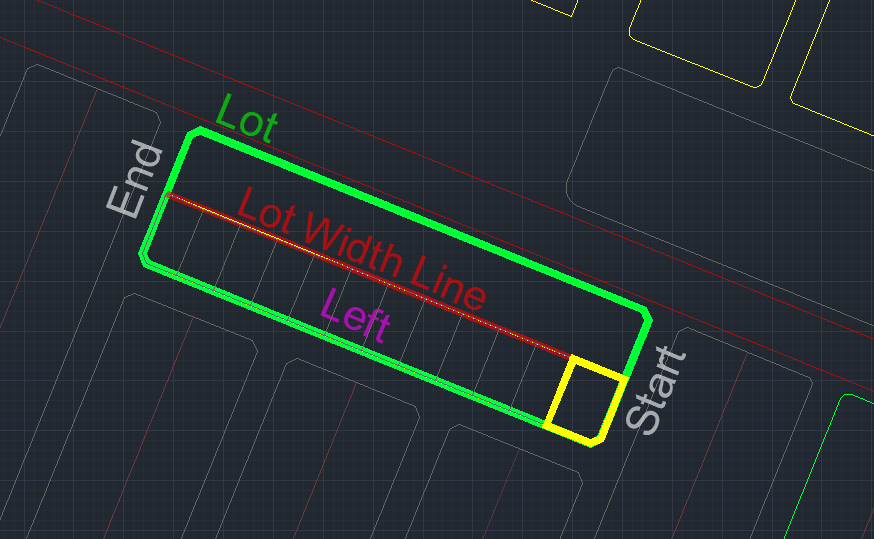
4. Only Last
In this case, the whole remaining area is added to the last parcel.

5. No adjustment
In this case, the whole remaining area is set as a separate parcel at the start.
By List
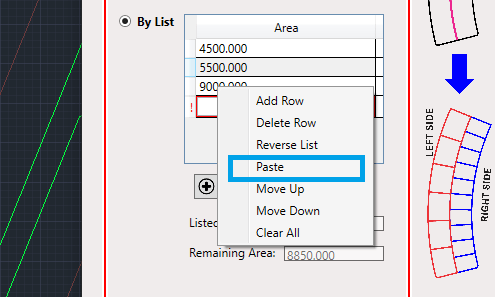
In this method, you can divide a lot into parcels in your desired areas by providing a list. A new entry can be added to the list by pressing the + (addition) button. Similarly, you can delete an entry using the cross button, change the order, remove the entire list, and invert the list using the subsequent buttons available below the list.

Paste List
You can access all list operations by right-clicking on the list. Additionally, you can paste a complete list that is copied from other applications (such as Excel or Notepad).