
SPCAD Topography Essentials
The Longitudinal Profile from CSV tool in SPCAD allows users to generate accurate longitudinal profiles directly from CSV data. This feature is especially useful for visualizing elevation changes along alignments such as roads, corridors, and terrain surfaces. By importing CSV data, engineers can quickly create, analyze, and customize longitudinal profiles without manual drafting.
CSV File Requirements
To begin with, the CSV file must contain exactly two columns:
- Chainage – distance measured along the alignment
- Elevation – corresponding elevation value
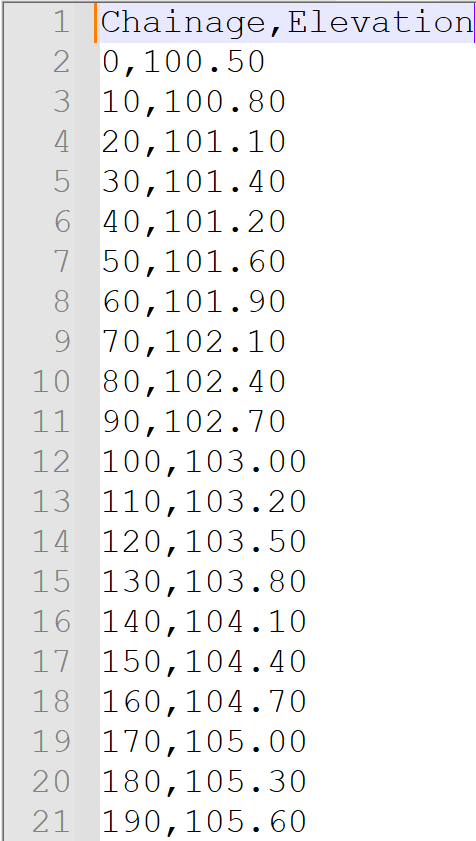
It is important to note that SPCAD uses a fixed column order:
- The system always interprets the first column as Chainage.
- The system always interprets the second column as Elevation.
You do not need to map columns manually. Therefore, you must strictly follow the column order.
Additionally:
- Values must be comma-separated
- Chainage values should be in ascending order
- Save the file with a .csv extension.
Steps to Create a Longitudinal Profile from CSV
- Go to the Topography panel and click PCSV,
- Or type
PCSV_SPin the command line. - In the file selection dialog, browse and select the required CSV file.
- Click OK to proceed.
- When prompted, define the plot extent using window selection.
- After confirming the plot area, the longitudinal profile will be generated and displayed in the drawing.

Modifying the Longitudinal Profile
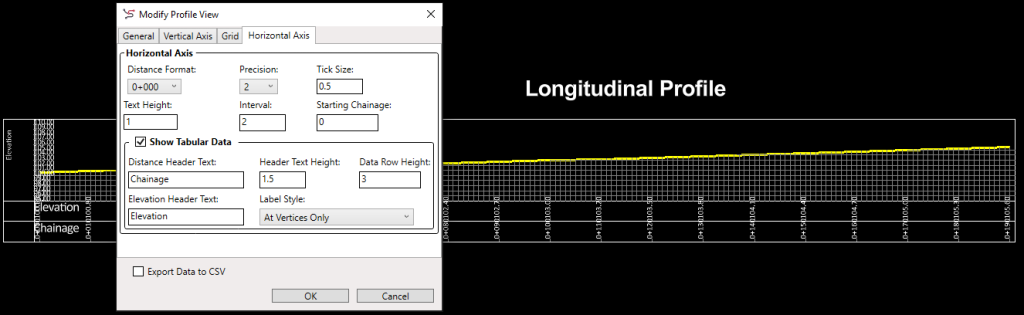
After creation, you can further refine the profile by double-clicking the profile grid. This opens a dialog where you can modify the profile title, vertical exaggeration, datum, and grid interval. You may also choose to show or hide grid lines and tabulated data. Click OK to apply the changes.
Key Benefits of using Longitudinal Profiles
In conclusion, the Longitudinal Profile from CSV tool offers precise profile generation, seamless data integration, easy customization, and a user-friendly workflow, making it an essential feature for efficient topographic analysis in SPCAD.