
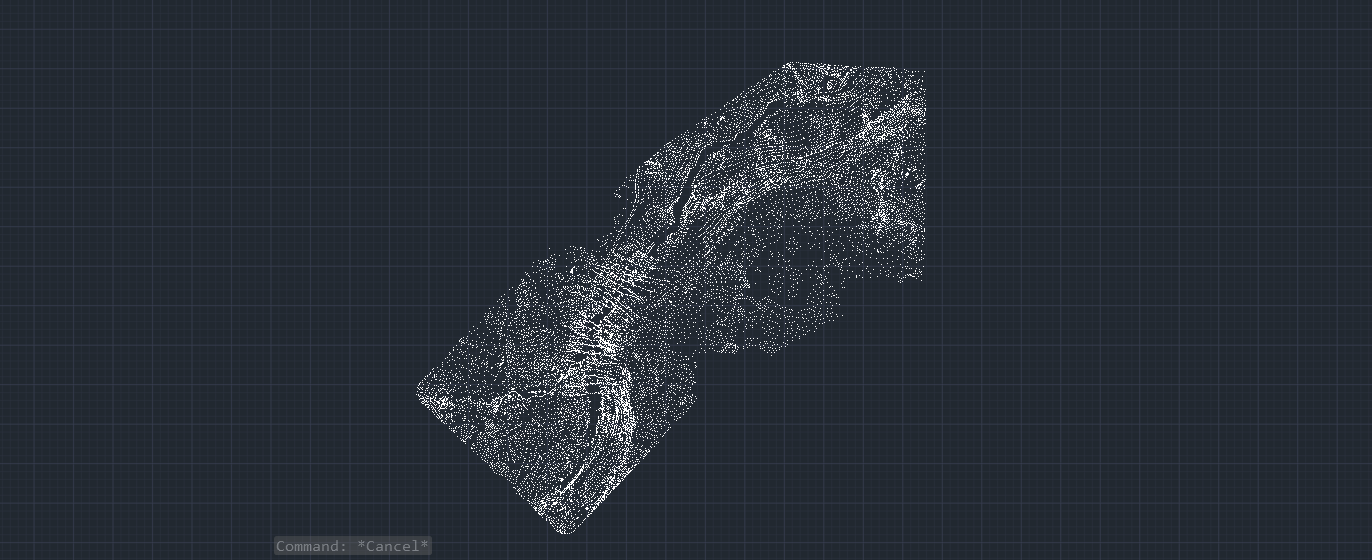
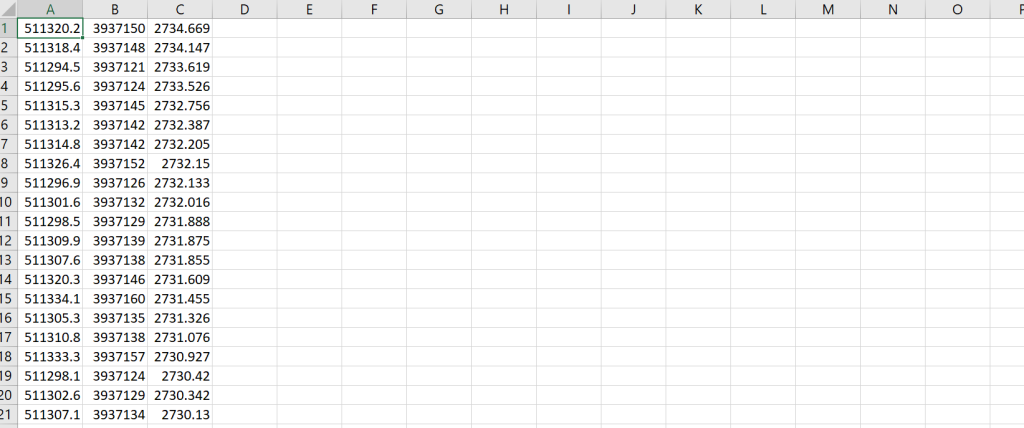
The Export Points to CSV Tool in SPCAD simplifies data sharing by converting point objects into CSV format. CSV files store data in a tabular structure, making them highly compatible with various spreadsheet programs
Why Export Points to CSV in a CAD Environment?
- Enhanced Data Management: Exporting points to CSV in a CAD environment enables streamlined data management. CSV files provide a simple, tabular format, making it easier to organize and manipulate coordinate data.
- Seamless Data Integration: CSV files are widely supported across various applications. This compatibility ensures that point data can be easily integrated into other software, facilitating collaboration and data analysis.
- Simplified Data Sharing: Exporting points to CSV allows for effortless data sharing. Additionally, because CSV files are lightweight and universally accepted, they can be easily shared across different platforms and systems.
- Accurate Coordinate Transfer: Exporting to CSV ensures precise transfer of Cartesian coordinates (x, y, z) from your CAD environment. This accuracy is crucial for maintaining the integrity of spatial data when moving between different software or platforms.
- Improved Workflow Efficiency: By exporting point data to CSV, you can streamline your workflow. Additionally, it allows for quick access and editing of coordinate data, ultimately saving time and reducing errors.
Benefits of Using CSV Files
CSV files allow easy data handling. Additionally, they are widely supported, ensuring seamless collaboration. Moreover, exporting to CSV ensures accurate data transfer. Consequently, this tool is essential for efficient data management.
Exporting Points to CSV
- Accessing the Tool: Click the CSV icon in the Export panel. Alternatively, type XCSV_SP in the command line.
- Selecting Point Objects: Next, select the point objects for export. Then, press ENTER or Spacebar to confirm your selection.
- Saving the CSV File: Finally, choose a location to save the CSV file. Click Save to complete the process.