
Overview
Use the Redefine tool to update the metadata and visual display settings of an existing TIN surface without changing its geometry or triangulation. This tool helps you organize, identify, and customize how the surface appears and is labeled in the drawing.
When you click the Redefine command under the Edit section, a TIN Settings dialog appears, as shown in the image. This dialog allows you to modify the following:
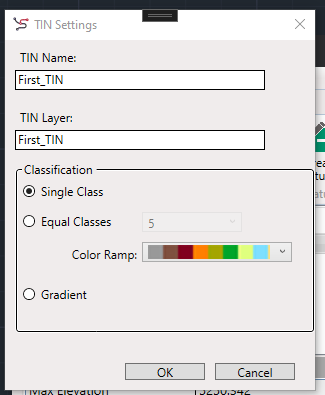
TIN Name
- Lets you rename the TIN surface.
- Useful for maintaining clear naming conventions, especially in workflows with multiple surfaces (e.g., ExistingGround, DesignSurface, Merged_TIN, etc.).
- The updated name is reflected immediately in the TIN Surface Manager.
TIN Layer
- Allows you to change the CAD layer on which the TIN surface is drawn.
- Ensures better layer management and organization in complex drawings.
- Layer name updates affect the visibility and control through the standard Layer Manager.
Classification (Display Settings)
Customize the visualization of elevation data across the surface by choosing one of the following modes:
Single Class
- Applies a uniform color to all triangles in the surface.
- Ideal for general-purpose or basic visualizations.
Equal Classes
- Divides the elevation range into equal bands (e.g., 5 classes).
- Assigns a unique color to each band based on the selected color ramp.
- Useful for identifying elevation zones, terraces, or grading bands.
Gradient
- Applies a smooth color gradient from minimum to maximum elevation.
- Best suited for realistic terrain visualization and identifying continuous elevation changes.
Color Ramp
- If Equal Classes or Gradient is selected, you can choose a predefined color ramp.
- Helps highlight elevation transitions and surface patterns effectively.
Notes
- Redefine does not affect the triangulation, points, breaklines, or elevations—it is strictly for metadata and display control.
- Use the tool multiple times to fine-tune the surface name and appearance during the design or QA process.