
Purpose
The ShrinkWrap Tool in SPCAD generates a boundary polygon around the selected Point Group. Depending on the Concavity Index, the polygon can closely follow the outer shape of the points or form a smoother convex boundary.
Usage
- To use the ShrinkWrap Tool, open the Point Group Manager, select a Point Group, click the Create Features dropdown, and choose Create ShrinkWrap.
- A dialog appears with a slider labeled Concavity Index that controls how tightly the polygon follows the point distribution.
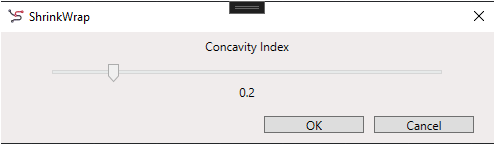
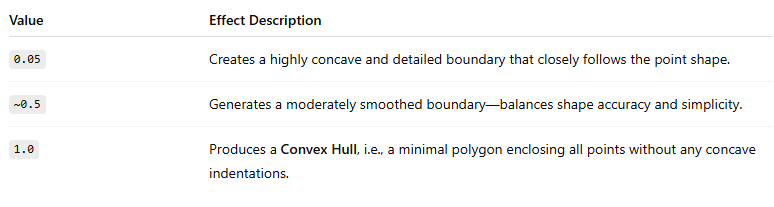
Concavity Index Settings
- Range: 0.05 to 1.0
- Default Value: 0.5
Visual Example
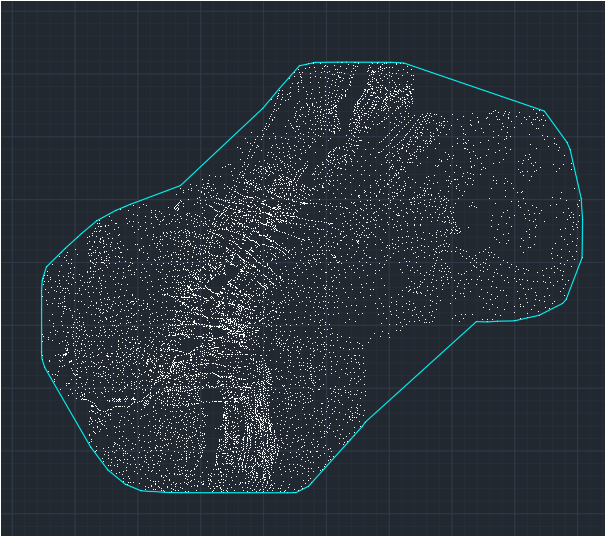
In the image shown:
- A point group with ~9700 points is displayed.
- The ShrinkWrap slider is set to 0.5.
- The generated polygon captures the outer shape of the point distribution, maintaining some concavity.
Similarly, the Concavity Index of 0.05 yields the following output.
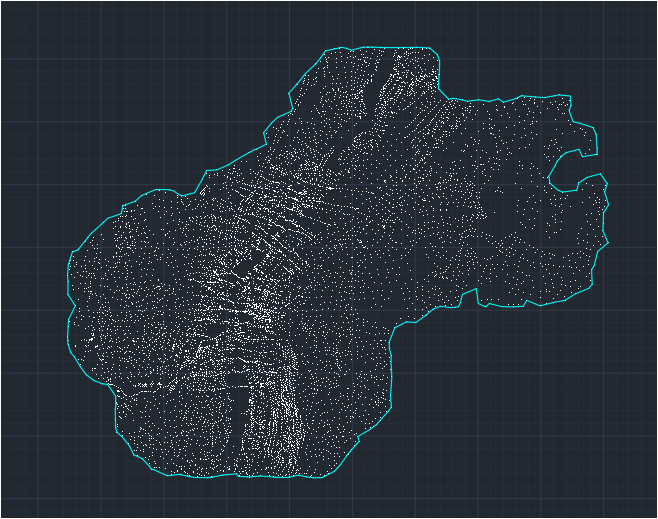
Output:
- The tool creates a closed polyline in the drawing to represent the boundary.
- It places the polyline on the active layer.
- You can use this boundary for analysis, clipping, or visualization purposes.
When to Use ShrinkWrap
- Firstly, to define a clear working boundary around surveyed or imported points.
- Secondly, to prepare extents for TIN creation, raster clipping, or volume calculations.
- To visualize the actual spatial spread of point data more accurately than a convex hull.