
Buffer Around Lines Tool in SPCAD: Easy Spatial Analysis
Overview
The Buffer Around Lines Tool in SPCAD allows users to create buffer zones at a specified distance around line features such as roads, rivers, or pipelines. Buffers are essential for spatial analysis and planning tasks—helping define safety zones, proximity areas, and regions of influence directly within CAD.
This tool is especially valuable for surveyors, urban planners, and engineers who need to evaluate the spatial impact of linear features. Whether you are planning infrastructure layouts, assessing environmental effects, or managing utility corridors, the Buffer Around Lines Tool simplifies the process of visualizing and analyzing distance-based zones.
What Are Buffers and Why Are They Important in CAD?
A buffer is a zone drawn at a fixed distance around a feature—point, line, or polygon—to represent an area of influence or restriction. In CAD environments, buffers help perform spatial queries and assist in impact assessments.
For example:
- Utilities and infrastructure: Managing maintenance or hazard zones along pipelines or electric lines.
- Urban planning: Defining restricted areas near new highways or rail lines.
- Environmental analysis: Marking protective zones around rivers or habitats.
What Are Line Buffers?
Line buffers specifically target areas around line features in a drawing. They help in identifying the areas surrounding linear features such as roads, rivers, or utility lines. Line buffers are particularly useful for analyzing proximity, planning maintenance activities, or assessing environmental impacts.
Steps to Use the Create Buffer Around Lines Tool
- Ensure Lines Are in Your Drawing
Begin by confirming that you have lines in your drawing, ensuring they are not closed shapes. - Access the Tool
Navigate to the Analysis panel in SPCAD. From the dropdown menu under “Buffer,” select “Line Buffer” or typeBFL_SPin the command prompt. - Select Lines
Select the lines around which you want to create a buffer. You can also select intersecting lines to create a buffer. - Press Enter
After selecting the lines, press Enter. A dialogue box will appear with several options:- a. Distance:
Specify the distance from the line where your buffer(s) will be created. - b. Side Type:
Choose whether you want the buffer on the left side, right side, or both sides of the line. - c. Merge All:
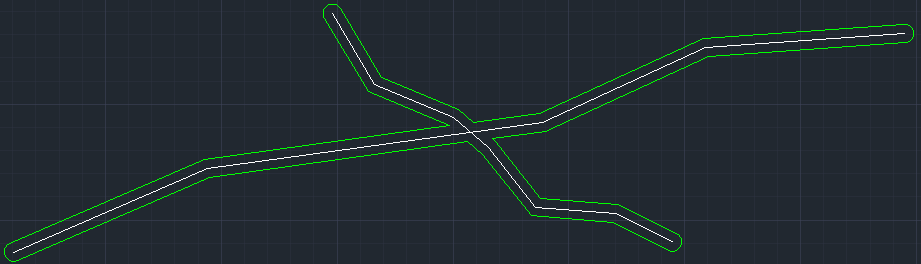
This option is available only if more than one line is selected. Check this option to merge the buffers into a single buffer; otherwise, the buffers will remain separate. - d. Round End:
Decide whether the ends of the buffers should be rounded. Check the box for round ends and uncheck it for square ends.
- a. Distance:

- Create Buffer
Click OK, and the buffers will be created around the selected lines based on your specified options.
Conclusion
The Create Buffer Around Lines tool in SPCAD is a powerful feature that enhances your ability to conduct spatial analysis and planning. By creating buffers around line features, you can better understand the impact and influence areas, making more informed decisions in your projects. For more detailed information on SPCAD tools, visit our website or Youtube channel.