
Create a Double Offset Tool in SPCAD
The Create Double Offset Tool in SPCAD is a powerful and efficient feature that enhances CAD design precision. It allows users to create two parallel offsets on either side of a selected line, polyline, or circle. This capability is especially useful in road design, utility layouts, and architectural planning, where symmetrical spacing and consistency are essential.
By using this tool, designers and engineers can quickly generate parallel boundaries at equal distances from a central feature, ensuring accuracy in their layouts.
Getting Started
Before using the tool, make sure your drawing includes the lines, polylines, or circles you want to offset. Once your drawing is ready, follow these simple steps to create a double offset efficiently.
- Access the Double Offset Tool
Navigate to the Analysis panel in SPCAD. In the ‘Buffer’ dropdown menu, select “Double Offset.” Alternatively, type DOFF_SP in the command prompt to activate the tool. - Select the Features
After activating the tool, use your cursor to select the line, polyline, or circle around which you want to create the double offset. Once your selection is complete, press Enter to proceed. - Specify the Offset Distance
The next step is to specify the distance at which you want the offsets to be created. Enter the desired offset distance, ensuring that it aligns with your project requirements. This step allows for precise control over the spacing of the parallel offsets. - Finalize the Offset
After entering the offset distance, press Enter again. The tool will then generate two parallel offsets on either side of the selected feature, creating a double offset.
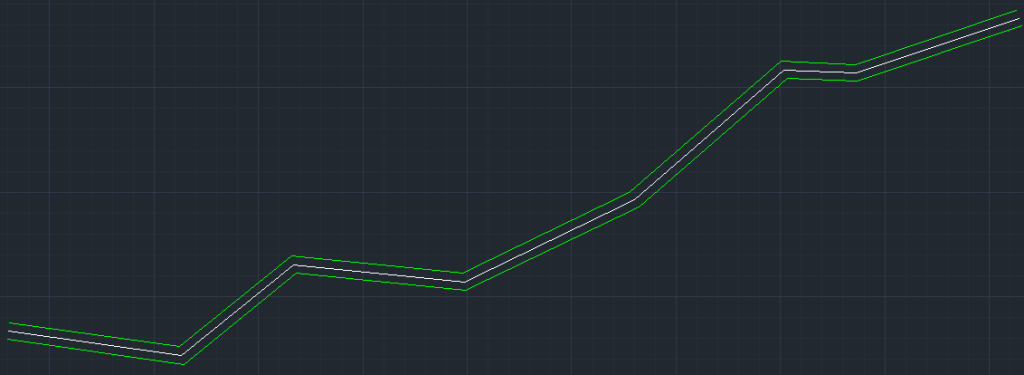
This straightforward process allows you to quickly and accurately create double offsets. It streamlines your CAD design workflow. The double offset tool is invaluable when symmetry and equal spacing are crucial. It ensures consistency and precision across your designs. For more detailed information on SPCAD tools, visit our website or Youtube channel.