
Mark Chainage Tool SPCAD: Essentials in Topography
Introduction to Mark Chainage
The Mark Chainage tool in SPCAD marks chainage along a selected alignment. It allows users to customize the chainage by defining intervals and tick widths. Additionally, users can customize and add text labels along the ticks, making it easier to read and interpret the alignment data.
How to Use the Mark Chainage Tool
- Accessing the Tool: First, click RDM from the Topography panel. Alternatively, type RDM_SP in the command line. Consequently, a dialogue box appears on the screen, guiding you through the process.
- Preparing the Alignment: Next, ensure that an alignment is defined before marking the chainage. Use the DFA_SP command to define the alignment. This step is crucial to avoid errors during the process.

- Selecting the Polyline: Then, select the polyline to which you want to apply the chainage marks. After selecting, press ENTER or Spacebar to confirm your selection. This action brings up the dialogue box where further customizations are made.
- Customizing Chainage Marks: Specify the chainage interval to display the marks along the alignment. Additionally, set the tick interval and tick length to control the appearance of the marks. These customizations ensure that the chainage marks are precise and easy to read.
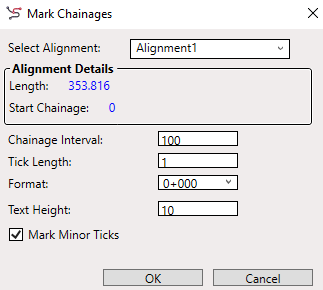
- Adding Text Labels: Select the label format from the dropdown list. Then, specify the text height for the labels. If you need the labels to align with the polyline, check the ‘Annotate parallel to Alignment’ option. This feature adds labels at a defined distance parallel to the selected polyline.
- Running the Process: Finally, click Run to execute the command. The tool will mark the chainage along the selected alignment according to the specified parameters.
Why Use the Mark Chainage Tool
Using the Mark Chainage tool ensures accurate and consistent chainage marking along alignments. This accuracy is crucial for projects that require precise distance measurements. Moreover, it allows for easy customization, making it adaptable to various project requirements.
Benefits of Using the Mark Chainage Tool
Firstly, the tool improves the clarity of alignment data by marking chainage intervals clearly. Additionally, it offers flexibility in tick and label customization. This flexibility ensures that the chainage marks are easy to read and interpret. Moreover, the tool streamlines the process of marking chainage, reducing the potential for errors and saving time.