
Import Text File Tool SPCAD: Essential for Seamless Data Integration
The Import Text File Tool in SPCAD is crucial. It significantly boosts efficiency when integrating textual data into CAD projects. A text file, typically stored with a .txt extension, holds plain text data that you can format in various ways, making it versatile. These files store essential data like coordinates and descriptions. When you import text files into CAD, you ensure an accurate representation. This process enhances both the precision and functionality of your project.
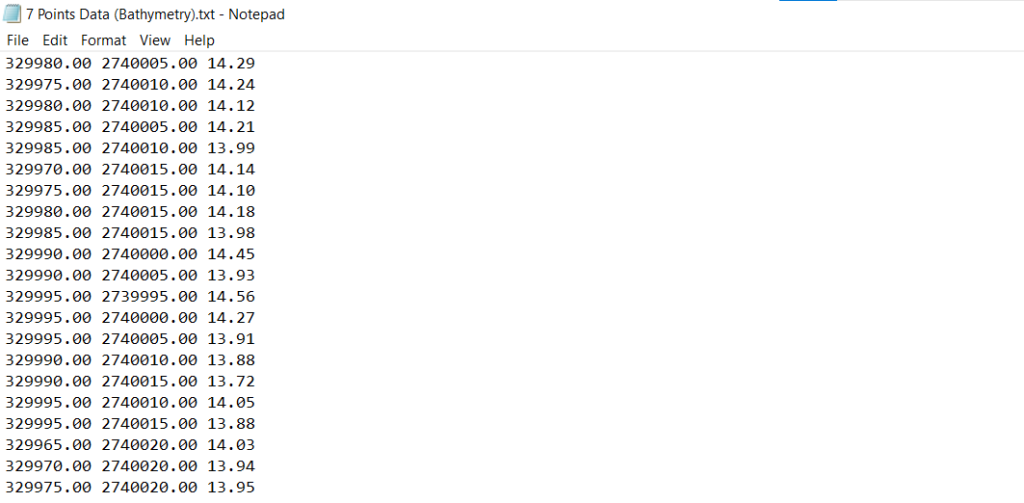

Why Import Text Files into CAD?
First, importing text files into CAD is essential. It eliminates the need for manual entry of structured data. Whether dealing with lists of coordinates or labels, integration saves time. It also reduces the risk of errors. This process ensures efficient work, especially in detail-critical projects. Furthermore, text files are easily editable. This makes them a flexible and reliable data source. They can be updated and re-imported as needed. Additionally, using text files ensures consistency. They provide a standardized format for data entry.
How to Use the Import Text File Tool
Accessing the Tool
First, access the tool by clicking the relevant icon in the Import panel. Alternatively, type `TXT_SP` in the command line. Once activated, the tool guides you through the process.
Selecting the Text File
Next, after activating the tool, select a text file from your computer. The tool will prompt this selection. After selecting the file, the tool processes the data.
Processing the Text Data
Once the file is selected, the tool processes it automatically. It interprets the text data and converts it into CAD objects. These can include points, lines, or annotations. This process saves time and ensures accuracy.
Ensuring Accurate Representation
This capability ensures accurate representation of your text data. It also maintains alignment with other design elements. Using this tool ensures data correctness, eliminating the need for manual adjustments.
Importing the Data
Finally, after processing the text file, the tool imports the data into your CAD drawing. The imported data integrates seamlessly with your project. This smooth integration ensures a continuous workflow.
Utilizing the Imported Data
This integration allows various applications for the imported text data. For instance, you can label sections, plot points, or define specific areas. The ability to update and re-import text files adds adaptability. Thus, using the Import Text File Tool enhances efficiency and accuracy.